Krabs is my config of clawdbot - a tool-calling and personalized llm client running on a small computer - that is reachable via Telegram (both DM and groupchats), writes notes into Obsidian, runs scheduled scripts (e.g. research digests), keep track of links (via good old pinboard), and keeps only the right things persistent. It is designed to leave an auditable and debuggable (?) trail (both in obsidian - which can be accessed over my phone - and the python sandbox). This is a partially overlapping tool to coding agents (you could probably get codex/clod code to handle telegram bots but the overall harness in clawdbot is nice and lean enough that I decided to not reinvent the wheel).
Clawd has a lot of lobster imagery, so I decided to name mine after the shifty capitalist lobster from the Spongebob universe (and ran with this imagery for a few other commands too - see later). Listen to Ween’s The Mollusk if you decide to follow this guide.

0) Mental model / architecture
- Gateway: long-running daemon that connects to channels (Telegram, etc.) and runs the scheduler (Clawdbot cron).
- Workspace: the folder krabs reads/writes for “project context” and file-backed memory.
- Channels: Telegram bot DMs + optional groups.
- Obsidian: just a folder of Markdown notes; krabs writes to a dedicated subfolder.
1) Install
I have a m4 mac mini that I use as an under-the-desk NAS, local-LLM tinkering machine, and general utility. All the LLM calls in this setup are external, so you don’t actually need a powerful computer; a Raspberry Pi or a VPS will do. I just happened to have one already set up, so I run Krabs on it. Any old computer will do.
All LLM calls are external, so the host can be modest (Raspberry Pi / VPS / old laptop). I run this on a Mac mini that already serves as a under-the-desk NAS, local-LLM tinkering machine, and general utility (I see people are ordering them explicitly for clawdbot, which seems wasteful and will likely spike prices).
- Install Node + npm (via nvm or system install). Docs point to a shell script that’ll install npm if you dn’t already have it.
- Install Clawdbot globally via npm:
npm i -g clawdbot - Workspace directory (our canonical workspace):
/Users/alal/clawd
Notes:
- Clawdbot state/config live under
~/.clawdbot/.
Install the daemon:
clawdbot onboard --install-daemon
2) Model authentication (GPT / Claude)
- The agent model is configured at onboarding. I use
openai-codex/gpt-5.2
- Auth mode is OAuth (stored in Clawdbot state). First time auth can be done remotely but is easier when you have display access and can launch a browser window
- You can use anthropic models (clawd → claude) or even local ones. I have a reasonable local LLM setup but tool calling on even a reasonably beefy quantized Qwen3 was too unreliable for it to be a reliable backend.
Where to look:
- Config file:
~/.clawdbot/clawdbot.json - Agent sessions/transcripts:
~/.clawdbot/agents/main/sessions/*.jsonl
Security: do not paste tokens into notes; keep secrets only in config/state.
Once configured, clawdbot has both a working tui and a web interace that is perfectly serviceable, but beside the point. What makes this useful is a mobile chat surface [and doesn’t require SSH gymnastics Personal Local LLMs from anywhere w a VPS.
3) Telegram setup (primary messaging surface)
Telegram has a very good interface for bot creation.
3.1 Create the bot
- In Telegram, talk to @BotFather
/newbot- Choose name + username
- Copy the bot token
3.2 Configure Clawdbot
Add to ~/.clawdbot/clawdbot.json:
channels.telegram.enabled: truechannels.telegram.botToken: <token>channels.telegram.dmPolicy: "pairing"
3.3 Pairing (DM authorization)
- DM the bot (
@krabsBot) → it returns a pairing code. - Approve on the server:
/Users/alal/.nvm/versions/node/v23.10.0/bin/clawdbot pairing approve telegram <CODE>
Where pairing state lives:
~/.clawdbot/credentials/telegram-pairing.json~/.clawdbot/credentials/telegram-allowFrom.json
3.4 Telegram Groups
Defaults:
- Mention-only (
requireMention: true) - My household has a channel that does a fair amount of household management, information retrieval, reminders through this; just ping
@krabsbot- my wife is a competent programmer in her own right and has previously humored me by ssh-ing onto this mac mini to run my rube-goldberg machines, but this telegram bot thread was the first time she is persistently using one of my hacky tools. We planned out The Agent’s food intake as we transition her to solids (these all go into an obsidian vault - discussed later).
- If I know you well and you want to talk to Krabs, message me on Telegram and I’ll invite the lobster.
- Outside of groups, every unique message sender to the bot needs to be approved. This means that you can do basic access-control via telegram itself - your bot isn’t getting unfiltered text with potential exploits feeding directly into it without safeguards (more on why not to use gmail in clawdbot later)
Gotchas:
- Group access is gated by
channels.telegram.groupPolicy+ allowlists. - Telegram can “migrate” a group to a supergroup and change the chat id to a
-100...form. If that happens, update config to match the new id.
4) Integrations I skipped
4.1 WhatsApp
I initially connected WhatsApp, but discovered the core issue:
- A linked-device WhatsApp integration effectively sits “inside” the WhatsApp account context and can see all message traffic.
- I wanted to have a group with my wife, but the only way to make this work would be to pretend that our thread also had an eavesdropping lobster and we could invoke him by tagging him. This is creepy (and whatsapp access writ large requires that all your messages implicitly feed into clawdbot)
- I disabled whatsapp access within 2 mins of activating it because I didn’t like ^.
4.2) Gmail / Gsuite
- You can give the lobster access to your entire gmail / gcal / gsuite. Naturally the people with the worst judgment in the world (people on xitter) are letting it shoot from the hip all over their digital private lives.
- Every email / calendar invite is an attack surface.
- I didn’t enable this.
4.3) Social media (twitter, bsky)
- Let’s not torture our aquatic assistants.
Keep the ‘first tier’ comms / data private
- gmail and whatsapp are my primary communication tools, and I am not letting a lobster handle them.
5) Obsidian integration (note-taking)
I am a fairly regular obsidian user (the blog you’re currently reading is itself an obsidian vault). Since these are simply markdown files organized into folders and/or tags, this works great with Krabs.
5.1 Vault
- Default vault:
/Users/alal/Documents/PersonalVault - This is synced to obsidian cloud (caveat: only paid part of obsidian - I pay for it primarily to support the dev for excellent software)
5.2 krabs note folder
- krabs-managed notes live under:
/Users/alal/Documents/PersonalVault/KrabbiePatties/
5.3 Behavior / triggers
Whenever I say:
- “take note” / “remember” / “archive” (or similar explicit instruction)
krabs writes a Markdown note into
KrabbiePatties/.
Convention:
- Append to an existing relevant note if one exists.
- Otherwise create a new note.
The first draft of this guide was written by Krabs into my obisidian vault.

Templates: Creating and managing reading lists
I frequently create reading lists for myself when I’m learning a new (usually technical) sub-literature. I initialize it with a chat message beginning “Reading list” and optionally a few papers it uses the following template:
Reading list note template (recommended):
- Title + 1–2 sentence purpose
- Core papers (3–8), each with:
- citation + link
- 3 bullets: problem, method, why it matters
- Secondary/related (optional)
- Open questions / follow-ups
- My take (optional)
6) Memory management
There are two complementary systems: Defaults (appended with custom Spongebob keywords) and Obsidian files.
6.1 File-backed memory (workspace)
- Curated long-term memory:
/Users/alal/clawd/MEMORY.md - Daily logs:
/Users/alal/clawd/memory/YYYY-MM-DD.md
6.2 Keywords (explicit persistence control) - custom
- spongebob: safe + important → store long-term (daily log +
MEMORY.mdas appropriate) - squidward: store short-term only (daily log only)
- patrick: transient (safe to forget)
- sandy: run in a sandbox
6.3 “KrabbiePatties” folder
- “KrabbiePatties” is the Obsidian folder where user-directed notes/archives go.
- I can always navigate to this on my phone/computer and manually examine the referenced note.
6.4 Pinboard for links
Pinboard is a venerable old link management tool I first learned about from Cosma Shalizi (afaict this is the only form of ‘social media’ he uses besides his blog). It is very simple, programmable, and lets you archive things quickly, which is perfect for this setup. I fed the documentation into Krabs and turned it into a skill that lives in ~/.skills; now I can use the verb ‘pin’ to put stuff in my pinboard archive and retrieve the last link accordingly.
7) Small Numerical Experiments: Python sandbox
7.1 Default sandbox
All routine Python tasks run in a single persistent sandbox:
- Folder:
~/tmp/krabs_the_koder/ - venv:
~/tmp/krabs_the_koder/.venv
7.2 Conventions
- Install packages into that venv (unless otherwise specified).
- Write scripts/data/plots into that sandbox folder.
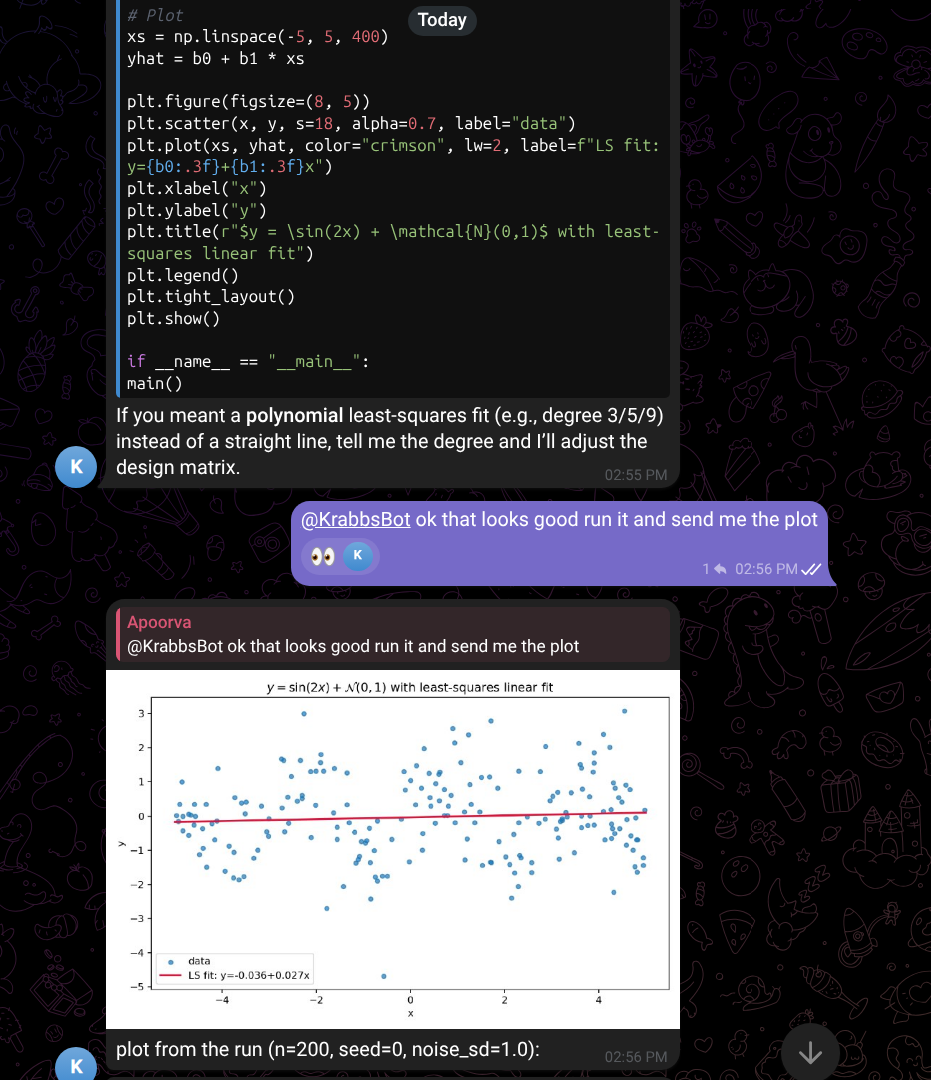
I can then do things like describe a basic task, have Krabs write and run the code and respond with a plot. I know where the code lives, so I can also ssh on and change/fix/rerun
8) Scheduled research digest (cron)
- A Clawdbot cron job sends a weekday 8am digest:
- arXiv econ.EM / stat.ME (plus a small curated journal “pepper” list)
- abstracts are in the model’s context, so i can initialize a followup conversation about a specific paper (by simply quote replying, which then tells model to go read the html version of the paper)
Where to look:
- Cron store:
~/.clawdbot/cron/jobs.json
9) Keep the gateway running across reboots (launchd)
We installed the official Clawdbot launchd service:
/Users/alal/.nvm/versions/node/v23.10.0/bin/clawdbot gateway install --force --port 18789Artifacts:
- LaunchAgent plist:
~/Library/LaunchAgents/com.clawdbot.gateway.plist
- Logs:
~/.clawdbot/logs/gateway.log~/.clawdbot/logs/gateway.err.log
Manage:
/Users/alal/.nvm/versions/node/v23.10.0/bin/clawdbot gateway status
/Users/alal/.nvm/versions/node/v23.10.0/bin/clawdbot gateway restart
Note: avoid running multiple gateways manually; the service should be the one “owner” of port 18789.
Appendix: quick “where do I look?” map
- Config:
~/.clawdbot/clawdbot.json - Logs:
~/.clawdbot/logs/ - Sessions:
~/.clawdbot/agents/main/sessions/ - Cron jobs:
~/.clawdbot/cron/jobs.json - Workspace:
/Users/alal/clawd/ - Obsidian vault:
/Users/alal/Documents/PersonalVault/ - Obsidian notes folder:
/Users/alal/Documents/PersonalVault/KrabbiePatties/ - Python sandbox:
~/tmp/krabs_the_koder/